
Copilot has evolved quickly since it was first introduced in 2023 and has had several changes and enhancements designed to make employees’ work easier and more efficient. It’s hard to keep up with all the changes, let alone keep employees updated too. Below are 3 easy use cases for Copilot Chat (Work tab) that can help your employees save time, streamline tasks, and boost productivity in their daily work. Let’s explore some practical ways your team can start using Copilot Chat today.
Copilot Memory and Communication Style
Copilot Chat can analyze your previous emails, Teams chats, and documents to determine what your overall communication style is. You can then use Copilot Memory to store your communication style and instruct Copilot to provide responses in your own style, tone, etc.
Prompt #1: Analyze my emails, chats, and meeting transcripts to provide my overall communication style.
Make sure to review for accuracy
Prompt #2: Remember to match my overall communication style when crafting emails, responses, or drafting language for me.
This will add it to Copilot Memory
Now ask Copilot to draft an email or document and watch how the results more closely match your style. You’ll find you spend less time refining results to make them “sound more like me” than previously.
Of note, Copilot Memory cannot be added to directly. You must use the chat feature and words like “remember” or “I prefer” for it to be stored in memory. You can, however, access the information stored in memory to review or delete it by going to Settings and then Personalization and Saved Memories.
Schedule a Prompt and Plan for Your Day
Copilot can schedule prompts. A great use case for this is anything that you currently do repetitively where you are analyzing information. For me, I spend my last bit of time on Friday afternoon reviewing my upcoming meetings for the following Monday or week. I determine what needs to be done to prepare for meetings and set my priorities for the coming days. Wouldn’t it be wonderful if you had a personal assistant to do that for you? You do! Here’s how you can easily schedule a prompt and make your daily prep seamless:
Prompt: Summarize the meetings I have scheduled for [today/Monday/next week]. List 3 action points for each meeting and prioritize them by importance and deadline. Provide reference materials where appropriate.
- Run your prompt.
- Hover over the prompt and select the Clock icon. This lets you schedule the prompt to run automatically.
- Enter the start date and time. Choose when you want the prompt to begin running.
- Set recurrence and frequency. Decide how often you’d like the prompt to run, such as daily, weekly, or monthly.
- Check the box for email notifications if desired. You’ll receive an email when responses are ready to review.
Now, you can run the prompt automatically and get the information you need quickly without wasting time clicking between your calendar, emails, documents, etc. Other use cases might be:
- Monthly analysis and report generation
- Weekly status reports
- Keeping updated on new features for training purposes
Custom Instructions and Preferences
Copilot has the capability to retain your preferences, making responses better suited to your needs and requiring less refining over time. Like Copilot Memory, Custom Instructions stores your preferences, but you can add information directly in this section. You can also edit and delete instructions which will affect future prompts. To access, go to Settings, then Personalization and Custom Instructions.
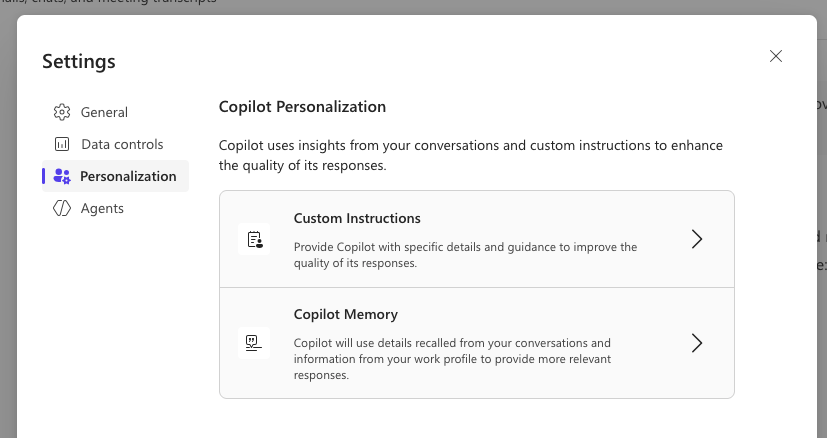
Once there, enter things like your preferred output format, things to prioritize, and things not to do. Some examples are:
- Use table formats for responses when appropriate.
- Do not use em dashes.
- I frequently work with Tom Jones and Patricia Daily, prioritize insights from them.
- I’m a Sr. Solutions Architect focused on ROI, KPIs, and AI. Prioritize content related to these.
Now, prompt Copilot and see how it changes responses to fit your customizations.
Leveraging Copilot Chat to increase efficiency in daily tasks is a quick win for anyone on your team. There are so many easy use cases to implement, but training users to take advantage of Copilot Chat can seem daunting. Compass365 is here to assist. We offer basic Copilot training for your users which includes prompting techniques and a variety of use cases for Copilot Chat as well as specific apps like Word, Outlook, Teams, and PowerPoint. Contact us today for more information or to set up a call.