
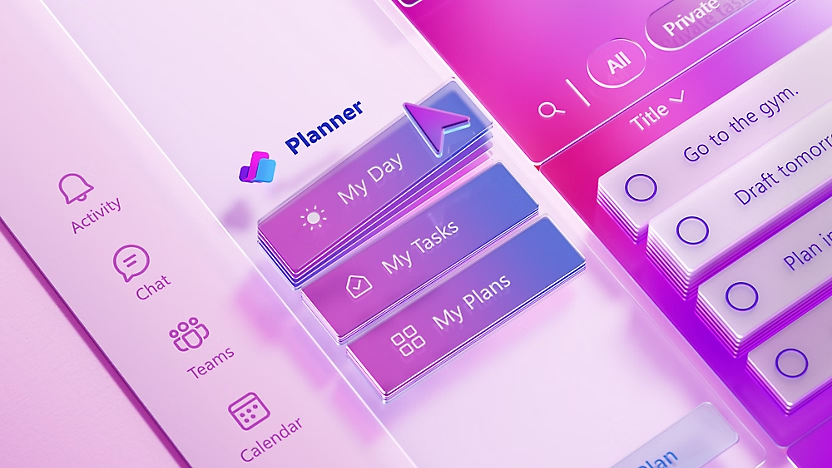
Starting in early August 2025, Microsoft Project Online will be redirected to Microsoft Planner. This change helps bring together the several former locations to manage tasks into one easy to use app – Microsoft Planner. Planner can be accessed in Teams as well and unites tasks from throughout Microsoft 365 into one place.
Why is this change happening?
By aligning tasks across Microsoft, To Do, Project Online and Planner into one application, you get the benefit of seeing all your tasks in one place. This alignment streamlines navigation, reduces app fatigue and expands AI capabilities through Copilot and agents.
Benefits of these changes:
- Reduction in the number of places to manage tasks, with new views for task management including “My Tasks” and “My Day”
- New AI features for plan and task generation[1]
- More collaboration across tools and teams
Are there differences in Planner and Project apps?
Yes, while there are differences between the Planner and Project apps, Microsoft is working to align the feature differences. Currently these differences include[2]:
- Plan views and roadmaps – while Planner does not support roadmaps as in Project, this is replaced with Portfolios. Previous roadmaps may need to be recreated, and Azure DevOps items cannot be used in the new Planner views
- Microsoft Project and Roadmap apps in Teams will be transitioned to the Planner app for Teams
- Project and Planner licensing remains the same[3]
- Importing a plan from .mpp – while this feature is not supported yet in Planner this can be done in the Power Apps Project, this is a Power App for working with projects; it leverages your existing plans as Power Apps. This app will be renamed from Project to Planner in the coming weeks, features of the Power App including upload from .mpp remain [4]
- All plans and boards will be retained, and no access will be affected to existing plans as part of these updates
What do I need to do to prepare for these changes?
- Repin any favorite plans from Project in the Web in Planner
- Update or recreate any roadmaps in Planner
- Check out the adoption page for more training and resources – New Microsoft Planner – Microsoft Adoption
Planner is becoming the new home for task management in Microsoft 365. With a few simple steps you’ll be prepared for the changes and ready to utilize the enhanced AI features, simplified navigation, and seamless integration across Microsoft 365.
Looking to enable Microsoft 365, Copilot, and other collaboration tools in your organization? Contact us to get started with expert guidance and support.
[1] Access Project Manager – Microsoft Support
[2] The features and differences change often, be sure to check the roadmap regularly – Microsoft 365 Roadmap | Microsoft 365
[3] Compare All Planner Options and Prices | Microsoft Planner